📖 Welcome to Cordial Recipes!
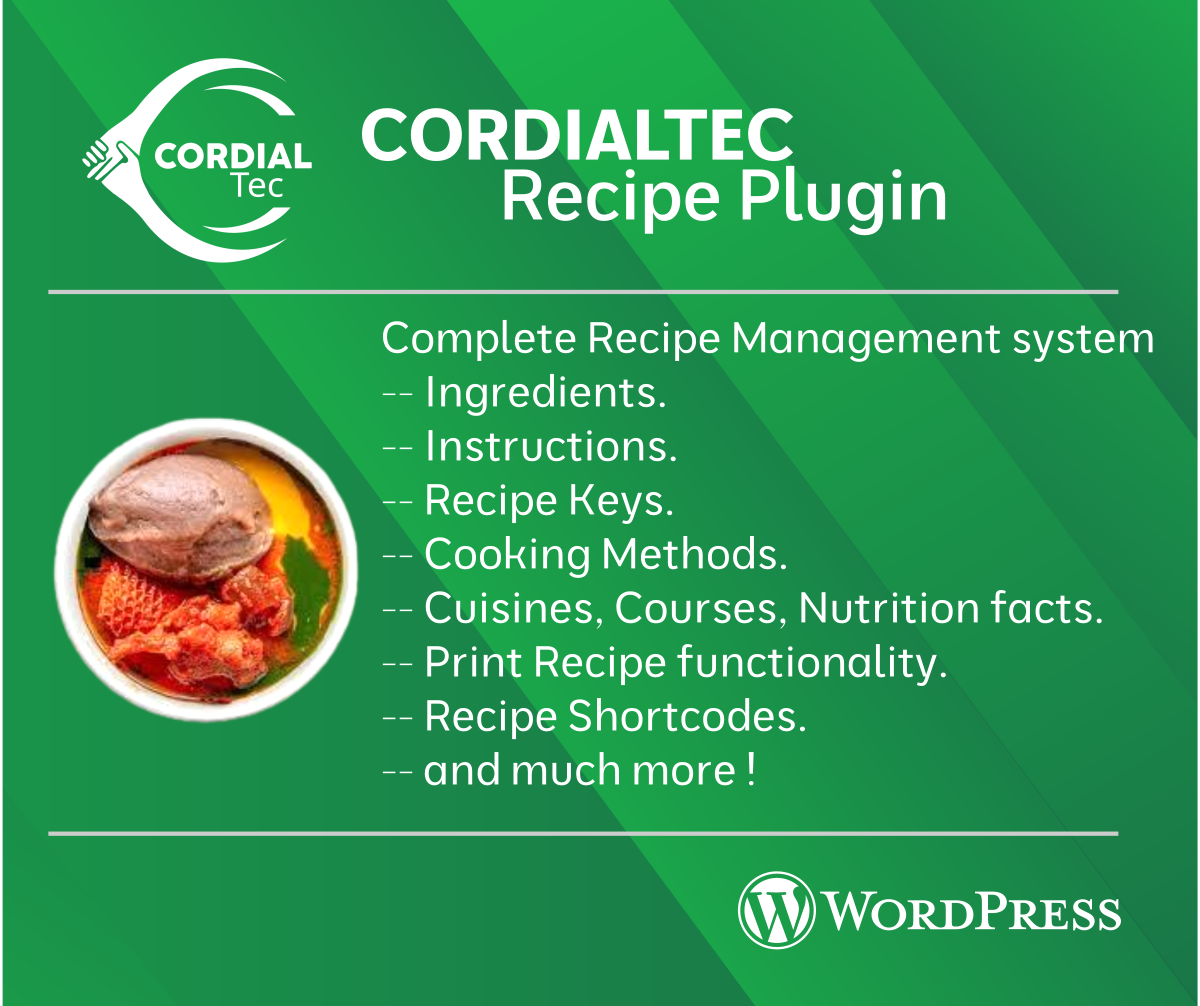
The Complete Recipe Management System for Your Website.
Imagine having your own beautiful digital recipe book on your website—where every recipe looks professional, prints perfectly, and even shows nutrition facts. That’s exactly what Cordial Recipes does!
Whether you’re a food blogger, restaurant owner, cooking instructor, or just someone who loves sharing recipes, this plugin makes it simple and beautiful.
🎯 What This Plugin Does For You
Think of it as your kitchen assistant that:
- 📝 Creates beautiful recipe pages
- 🏷️ Organizes recipes into categories (like “Italian,” “Desserts,” or “Healthy”)
- 🖨️ Lets visitors print recipes easily
- 📊 Shows professional nutrition labels
- 📱 Looks great on phones, tablets, and computers
- 🔍 Helps people find recipes by ingredients, cooking time, or difficulty.
✨ Key Features (In Simple Terms)
1. Recipe Creation Made Easy
- Fill in simple forms—no coding needed
- Add ingredients with pictures
- Write step-by-step instructions
- Set cooking times (prep, cook, rest)
- Choose difficulty level: Easy, Intermediate, or Tasking
2. Smart Organization System
- Health/Diet Categories: Gluten-free, Vegan, Low-carb, etc.
- Cuisines: Italian, Mexican, Asian, etc.
- Meal Types: Breakfast, Lunch, Dinner, Snacks
- Seasons: Spring, Summer, Holiday recipes
- Tags: Quick, Family-friendly, Party food, etc.
3. Professional Nutrition Facts
Just like you see on food packages! Shows:
- Calories per serving
- Protein, carbs, and fats
- Vitamins and minerals
- In two styles: USDA (official) or simple list
4. Print-Ready Recipes
- One-click printing
- Clean, easy-to-read format
- Perfect for kitchen use
- Saves paper and ink
5. Flexible Display Options
Place recipe parts anywhere on your site:
- Show just ingredients
- Display cooking times
- Feature nutrition facts
- Add print buttons
🚀 Getting Started (5 Simple Steps)
Step 1: Install the Plugin
- Go to your WordPress dashboard
- Click “Plugins” → “Add New”
- Upload the Cordial Recipes ZIP file
- Click “Install Now” then “Activate”
Done! ✅ The plugin is now ready to use.
Step 2: Set Up Your Recipe Categories
Think of this as creating drawers for your recipe box:
- Go to “Recipes” in your menu
- Click each category type (Cuisines, Courses, etc.)
- Add your categories:
- Example: Under “Cuisines” add: Italian, Mexican, Chinese
- Example: Under “Courses” add: Breakfast, Lunch, Dinner
Step 3: Create Your First Recipe
- Click “Recipes” → “Add New”
- Give it a title: “My Famous Chocolate Chip Cookies”
- Add a beautiful photo (this becomes the recipe image)
Step 4: Fill in Recipe Details
You’ll see several boxes—fill them like this:
Box 1: Cooking Times
- Prep: 15 minutes
- Cook: 10 minutes
- Rest: 5 minutes
Box 2: Serving Info
- Servings: 24 cookies
- Calories: 150 per cookie
- Best Season: All year
Box 3: Difficulty & Cooking Method
- Difficulty: Easy
- Cooking Method: Baking
Box 4: Ingredients (This is fun!)
Click “Add Ingredient” and enter:
- Ingredient: 2 cups flour
- Status: (optional, leave blank if required)
Box 5: Instructions
Click “Add Instruction” and write:
- Step 1: Preheat oven to 350°F
- Step 2: Mix dry ingredients
- (Add as many steps as needed)
Box 6: Equipment Needed
- Upload pictures of: Mixing bowl, measuring cups, baking sheet
Box 7: Recipe Notes
- Add tips: “For chewier cookies, chill dough for 1 hour”
Box 8: Nutrition Facts (Optional but impressive!)
Fill in the numbers—the plugin calculates percentages automatically!
Step 5: Publish & See Your Recipe
- Click the blue “Publish” button
- Visit your site to see the beautiful recipe
- Try the print button—it works perfectly!
🎨 Making It Your Own
Customizing How Recipes Look
You can change colors, sizes, and layouts using simple settings in the shortcodes. Don’t worry—”shortcodes” are just little codes you copy and paste.
Example changes you can make:
- Change ingredient image size
- Adjust instruction number colors
- Modify spacing between items
- Show/hide titles
Adding Recipes Anywhere
Want a recipe in your sidebar? On your homepage? In a blog post? Easy!
- Go to the page where you want the recipe
- Add this simple code:
[cordial-recipe-ingredients] - Save and view—your ingredients appear!
Popular codes to use:
[cordial-total-time]– Shows total cooking time[cordial-recipe-difficulty]– Shows Easy/Intermediate/Tasking[cordial-recipe-print-button]– Adds print button[cordial-recipe-nutrition]– Shows nutrition facts
📱 Display Options Gallery
Option A: Full Recipe Display
[Recipe Title & Photo]
[Cooking Times & Difficulty]
[Ingredients List with Images]
[Step-by-Step Instructions]
[Equipment Needed]
[Recipe Notes]
[Nutrition Facts]
[Print Button]
Option B: Simple Sidebar Version
[Recipe Title]
[Prep Time: 15 min]
[Difficulty: Easy]
[Print Recipe Button]
Option C: Category Gallery
Show all your Italian recipes or Desserts in a beautiful grid.
🏗️ Organizing Your Recipe Collection
Smart Tips for Organization:
- Create main categories first (like setting up folders)
- Be consistent with names (always “Italian” not “Italian Food” sometimes)
- Use multiple categories (a recipe can be both “Italian” and “Dinner”)
- Add seasonal tags (“Summer,” “Holiday,” “Party”)
Example Organization Structure:
📁 Cuisines
  ├── Italian
  ├── Mexican
  ├── Asian
  └── American

📁 Courses
  ├── Breakfast
  ├── Lunch
  ├── Dinner
  └── Desserts

📁 Healthwise
  ├── Vegetarian
  ├── Gluten-Free
  ├── Low-Carb
  └── Dairy-Free
💡 Pro Tips for Success
1. Photo Quality Matters
- Use good lighting
- Show finished dish clearly
- Consider step-by-step photos
2. Recipe Testing
- Test cooking times yourself
- Verify ingredient amounts
- Have someone else follow your instructions
3. SEO (Getting Found on Google)
- Use descriptive titles: “Easy 30-Minute Chicken Parmesan”
- Add detailed descriptions
- Use all relevant categories
- Enable the print feature (users love this!)
4. Engaging Your Audience
- Ask for ratings (in recipe notes)
- Share recipe variations
- Create seasonal collections
- Feature “Recipe of the Week”
🛠️ Common Tasks Made Simple
How to Add a Print Button to All Recipes
- Go to Appearance → Widgets
- Add a “Text” widget to your sidebar
- Paste:
[cordial-recipe-print-button] - Save—now every recipe page has a print button!
How to Show Cooking Time in Posts
When writing a blog post about your recipe:
- In the post editor, add:
[cordial-prep-time] - That automatically shows the prep time
- No need to remember or update times manually!
How to Create a Recipe Index Page
- Create a new page called “All Recipes”
- Add this code:
[cordial-recipe-taxonomies] - Save—visitors can now browse all categories
🔍 Finding & Managing Recipes
Quick Search Tips:
- By ingredient: Use the search bar in Recipes
- By time: Sort by cooking duration
- By difficulty: Filter by Easy/Intermediate/Tasking
- By season: Use the Periods category
Bulk Actions:
- Select multiple recipes
- Add to categories in bulk
- Update serving sizes
- Duplicate recipes for variations
📊 Understanding Nutrition Facts
Why Include Nutrition Info?
- Helpful for health-conscious visitors
- Professional appearance
- Required for some audiences (fitness sites, diet plans)
- Builds trust with accurate information
Easy Ways to Get Nutrition Data:
- Use a kitchen scale for accuracy
- Online calculators (free tools available)
- Package information for store-bought ingredients
- Start simple—just calories and macros at first
The Two Display Styles:
- USDA Style: Looks like official food labels
- Inline Style: Simple expandable list
Recommendation: Start with Inline style—it’s simpler and cleaner!
🖨️ The Print Feature (Why Users Love It)
Benefits:
- No ads or navigation on printed pages
- Clean, readable format
- Saves ink with efficient layout
- Perfect for kitchen use
How Visitors Use It:
- Click the print button
- Get a printer-friendly version
- Take to kitchen or share with friends
- Add to personal recipe binder
Tip: Mention in your recipes “Click print for kitchen-friendly version!”
📱 Mobile-Friendly Features
Automatically Works On:
- ✅ Phones (vertical and horizontal)
- ✅ Tablets
- ✅ Desktop computers
- ✅ Printers
What Adjusts Automatically:
- Image sizes get smaller on phones
- Text remains readable
- Buttons stay tappable
- Layout stacks neatly
🔄 Updating & Maintenance
Regular Tasks:
- Update plugin when notifications appear
- Back up recipes (they’re part of your regular site backup)
- Review categories every few months
- Check print functionality occasionally
When You Get Updates:
- You’ll see a notification in WordPress
- Click “Update Now”
- The plugin updates automatically
- Test one recipe to confirm everything works
Note: Updates usually add new features or fix small issues—they won’t change your recipes!
❓ Frequently Asked Questions
Q: Do I need to know how to code?
A: Absolutely not! Everything is done through simple forms and checkboxes.
Q: Can I move my recipes from another site?
A: Yes! We can help you transfer recipes. Contact support for assistance.
Q: How many recipes can I create?
A: As many as you want! There’s no limit.
Q: Will this slow down my website?
A: No, it’s designed to be lightweight and fast.
Q: Can visitors submit their own recipes?
A: Not at the moment, but we are working on the Pro version that adds this feature.
Q: Is there a mobile app?
A: Your website IS mobile-friendly! Visitors can save it to their home screen like an app.
Nonetheless, we understand the need for a proper Mobile App and are working on its release.
Q: Can I change how recipes look?
A: Yes! Colors, fonts, and layouts can be customized.
Q: What if I make a mistake in a recipe?
A: Simply edit and update—it changes everywhere automatically!
🆘 Getting Help & Support
When You Need Assistance:
1. Check the Built-in Help:
- Hover over any field for tooltips
- Look for (?) icons for explanations
- Use the “Preview” feature to see changes
2. Quick Solutions for Common Issues:
- Print not working? Try a different browser
- Images not showing? Check file sizes (under 2MB recommended)
- Categories missing? Refresh the page
3. Professional Support Available:
- Email: info@cordialtec.com.ng
- Response time: Usually within 24 hours
- What to include: Screenshots and recipe URL
4. Community & Resources:
- Video tutorials on our website
- Recipe template examples
- Seasonal recipe ideas
- Food photography tips
🎯 Success Stories
What Users Are Saying:
- “My recipe traffic doubled after adding print buttons!”
- “The nutrition facts made my site look professional”
- “Organizing 200+ recipes is now actually enjoyable”
- “Visitors spend 3x longer on my recipe pages”
Real Results You Can Expect:
- ⬆️ More time spent on your site
- ⬆️ Higher engagement with recipes
- ⬆️ Better Google search rankings
- ⬆️ Increased social shares
- ⬆️ More return visitors
📈 Growing Your Recipe Site
Phase 1: Foundation (First Month)
- Add 10-20 favorite recipes
- Set up main categories
- Enable print feature
- Test on mobile devices
Phase 2: Growth (Months 2-3)
- Add nutrition facts to popular recipes
- Create seasonal collections
- Use shortcodes in blog posts
- Promote print feature to visitors
Phase 3: Optimization (Ongoing)
- Analyze which recipes are most printed
- Add user-requested categories
- Create recipe roundups
- Share behind-the-scenes creation process
🎁 Bonus: Recipe Marketing Ideas
Social Media Tips:
- Share print-friendly versions – “Perfect for your recipe binder!”
- Highlight nutrition facts – “Only 250 calories per serving!”
- Show cooking times – “Ready in 20 minutes!”
- Feature equipment – “All you need is one pot!”
Email Newsletter Content:
- “Recipe of the Week” with print link
- Seasonal recipe collections
- Cooking time challenges (“30-minute meals”)
- Nutrition spotlight series
Community Building:
- Ask for recipe variations in comments
- Create “cook-along” events
- Share visitor-printed recipe photos
- Feature reader recipe requests
✅ Your Recipe Success Checklist
Before Launching:
- 10+ recipes added
- Categories organized
- Print feature tested
- Mobile view checked
- Nutrition facts added (at least to some)
First Week:
- Promote print feature
- Share on social media
- Ask for feedback
- Check analytics
First Month:
- Add 20+ more recipes
- Create seasonal collection
- Optimize based on feedback
- Plan next month’s recipes
🌟 Why Cordial Recipes Stands Out
It’s Not Just a Plugin—It’s Your Recipe Assistant
- Saves You Time: Fill forms once, display everywhere
- Looks Professional: Restaurant-quality presentation
- Visitors Love It: Print feature = happy users
- Grows With You: From 10 to 10,000 recipes
- Always Supported: Help when you need it
The Secret Sauce:
- Simplicity: Easy enough for beginners
- Power: Feature-rich for professionals
- Flexibility: Works with your style
- Support: Never feel stuck
🏁 Ready to Start?
Your First 30 Minutes:
- Minutes 1-5: Install plugin
- Minutes 6-15: Add 3 main categories
- Minutes 16-25: Create your first recipe
- Minutes 26-30: Test print and mobile view
Remember:
- Start simple—add details later
- Use the preview feature
- Save often
- Have fun with it!
Need a Quick Win?
Create your simplest, most-loved recipe first. See how beautiful it looks. Print it out. Smile. 😊
🤝 We’re Here to Help!
Your success is our success. Whether you’re sharing family recipes or building a food business, we want your recipe site to thrive.
When in doubt:
- Try the preview button
- Save and check how it looks
- Reach out if stuck
Welcome to the Cordial Recipes family! We can’t wait to see what delicious creations you’ll share with the world. 🍳🎉
“Good food is all the sweeter when shared with good friends.” – Dele Emilose
Happy cooking and sharing!
The Cordial Recipes Team 🍽️💖